



























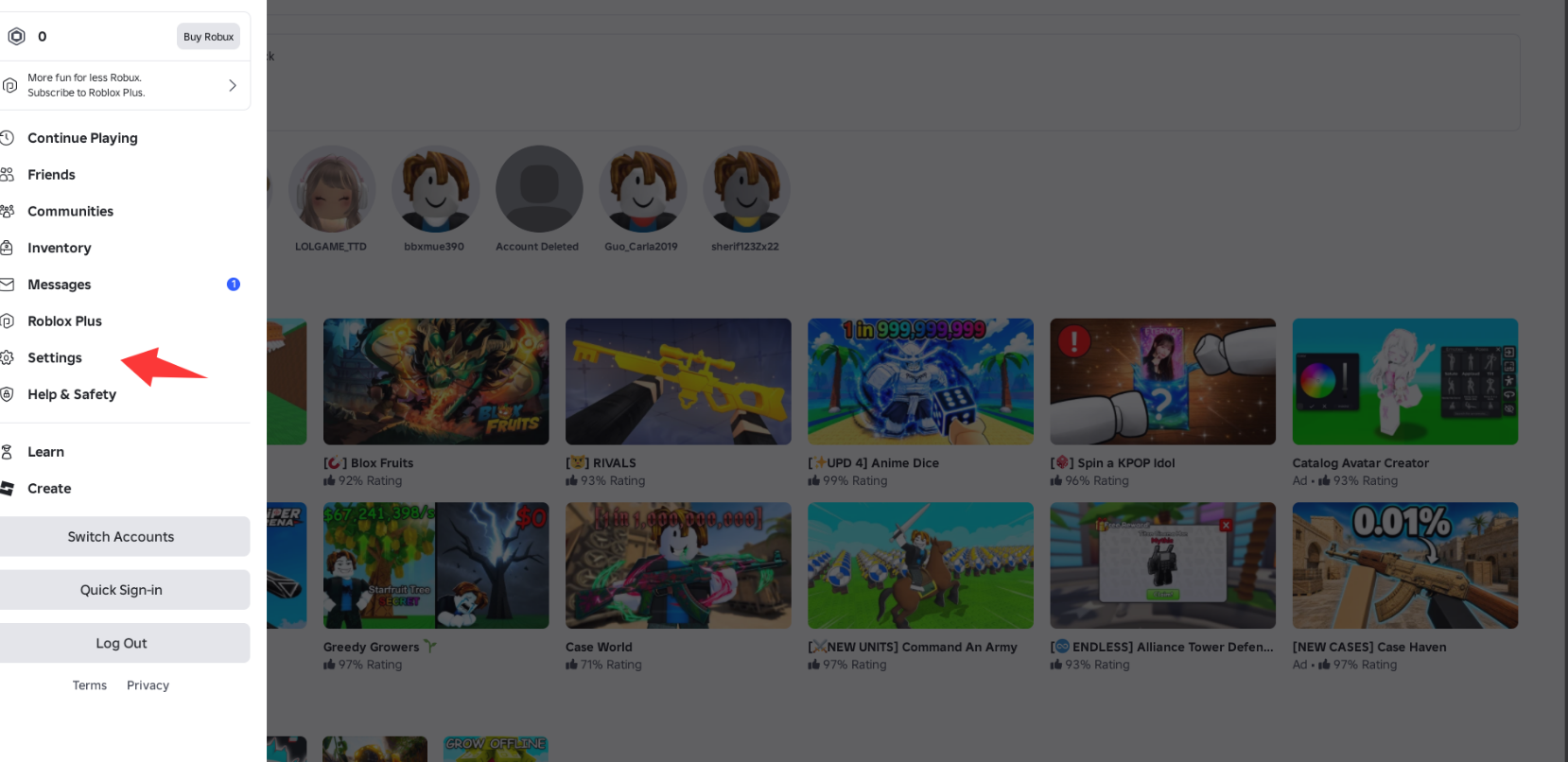
Log in and open Settings
Sign in to your Roblox account, then open Settings.
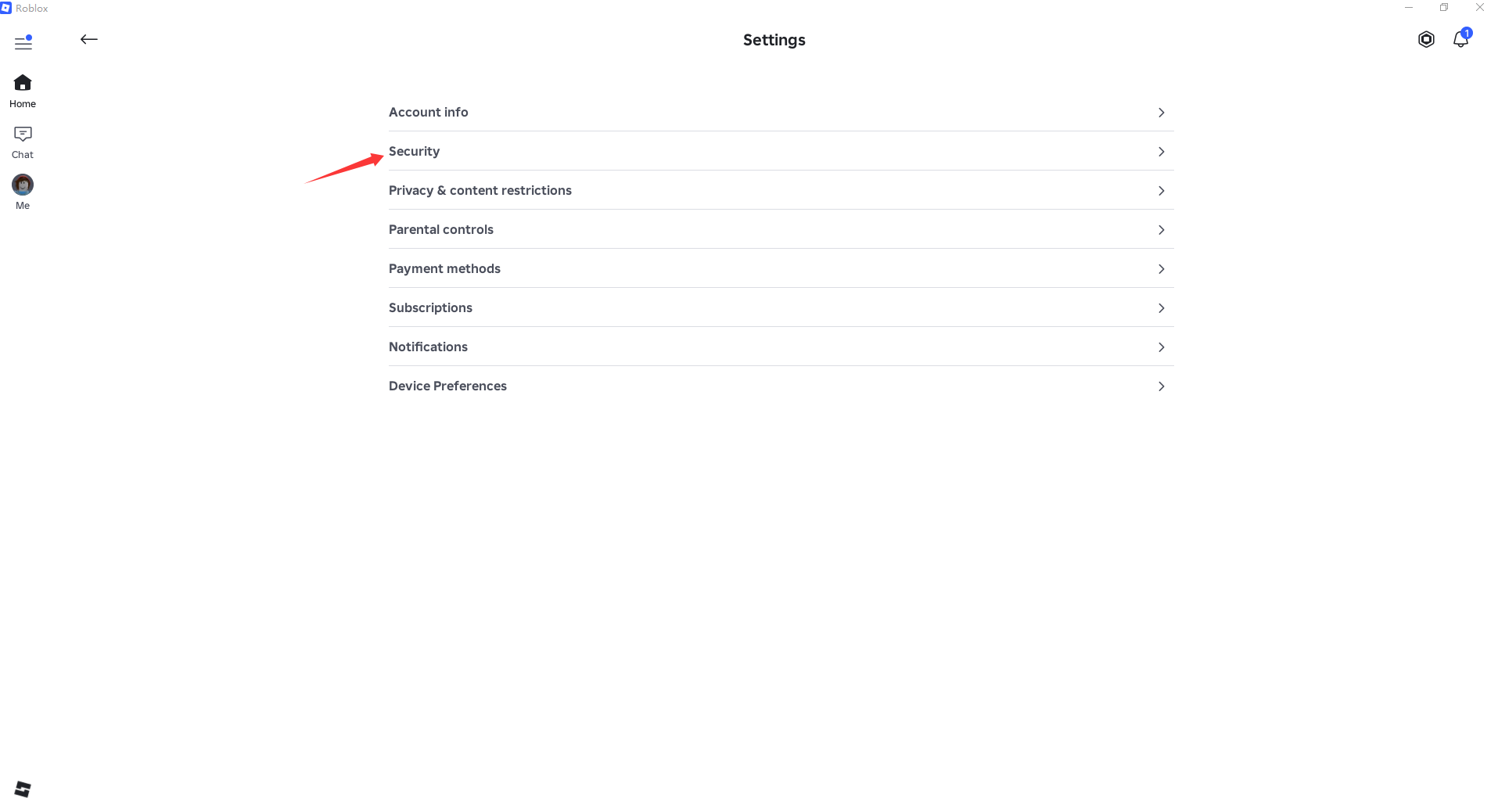
Open the Security section
Inside Settings, select Security.
Find Enhanced Protection
On the Security page, locate the Enhanced Protection section.
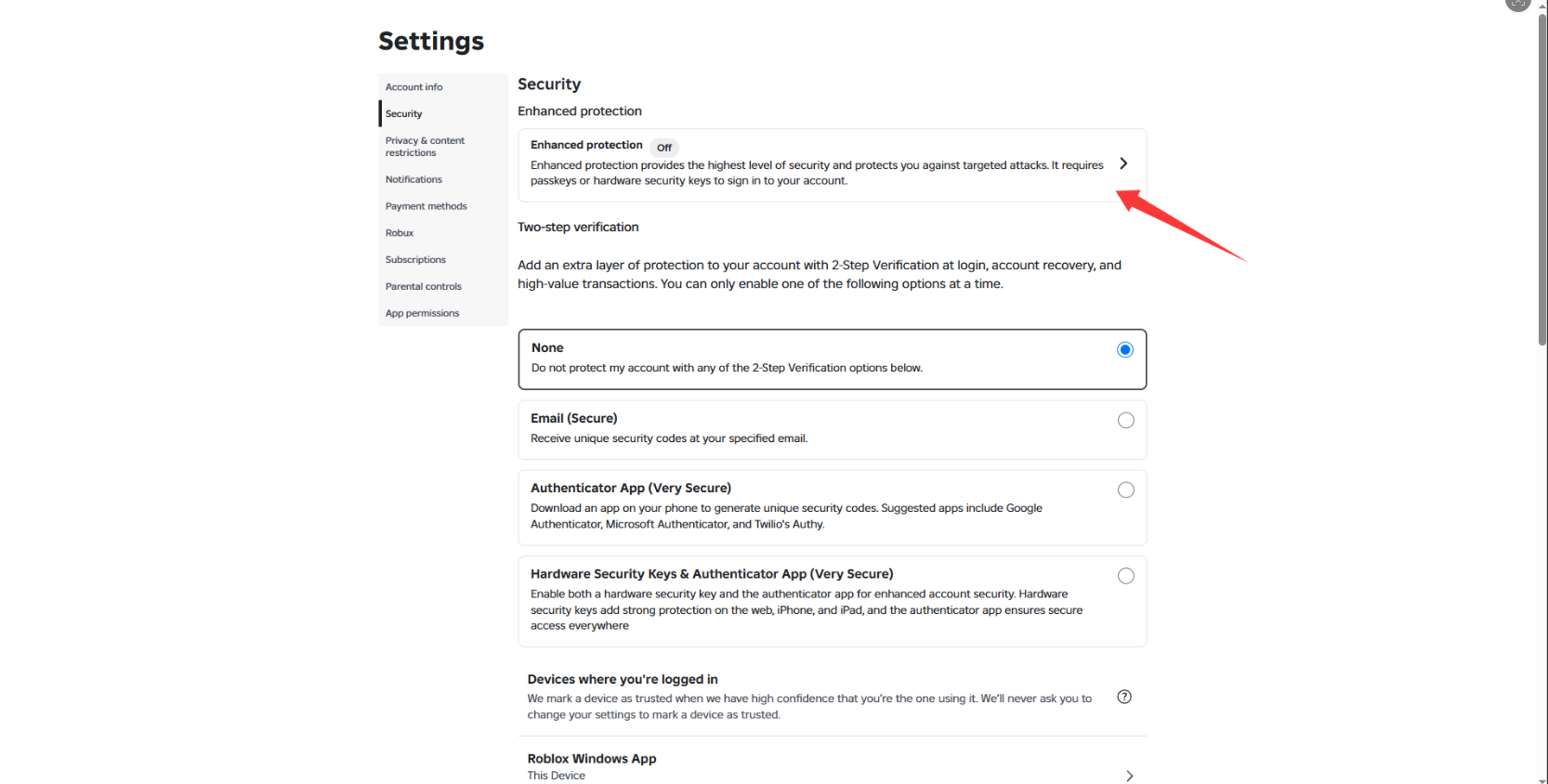
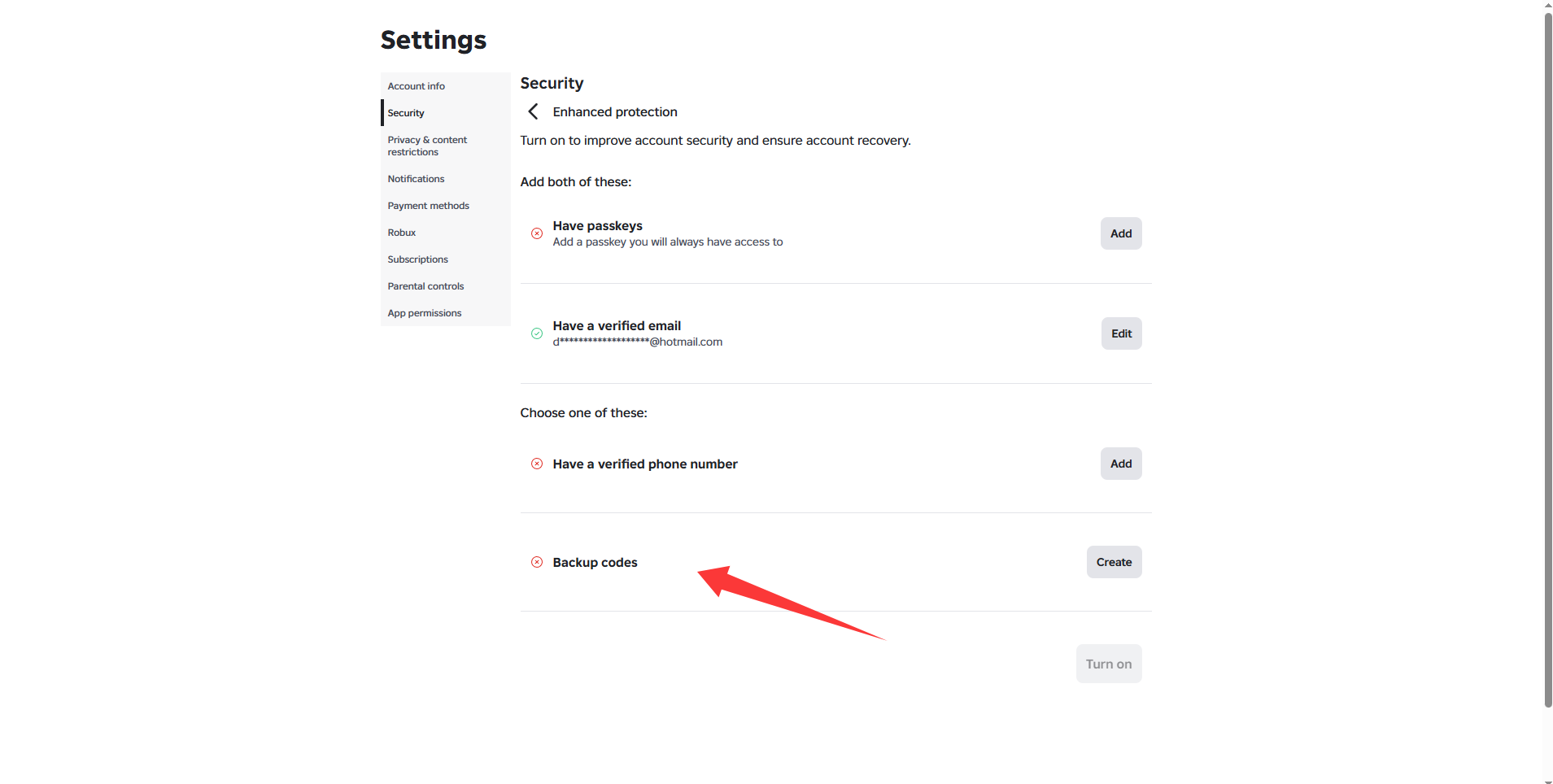
Open Backup Codes
Scroll to the Backup Codes option and click Generate.
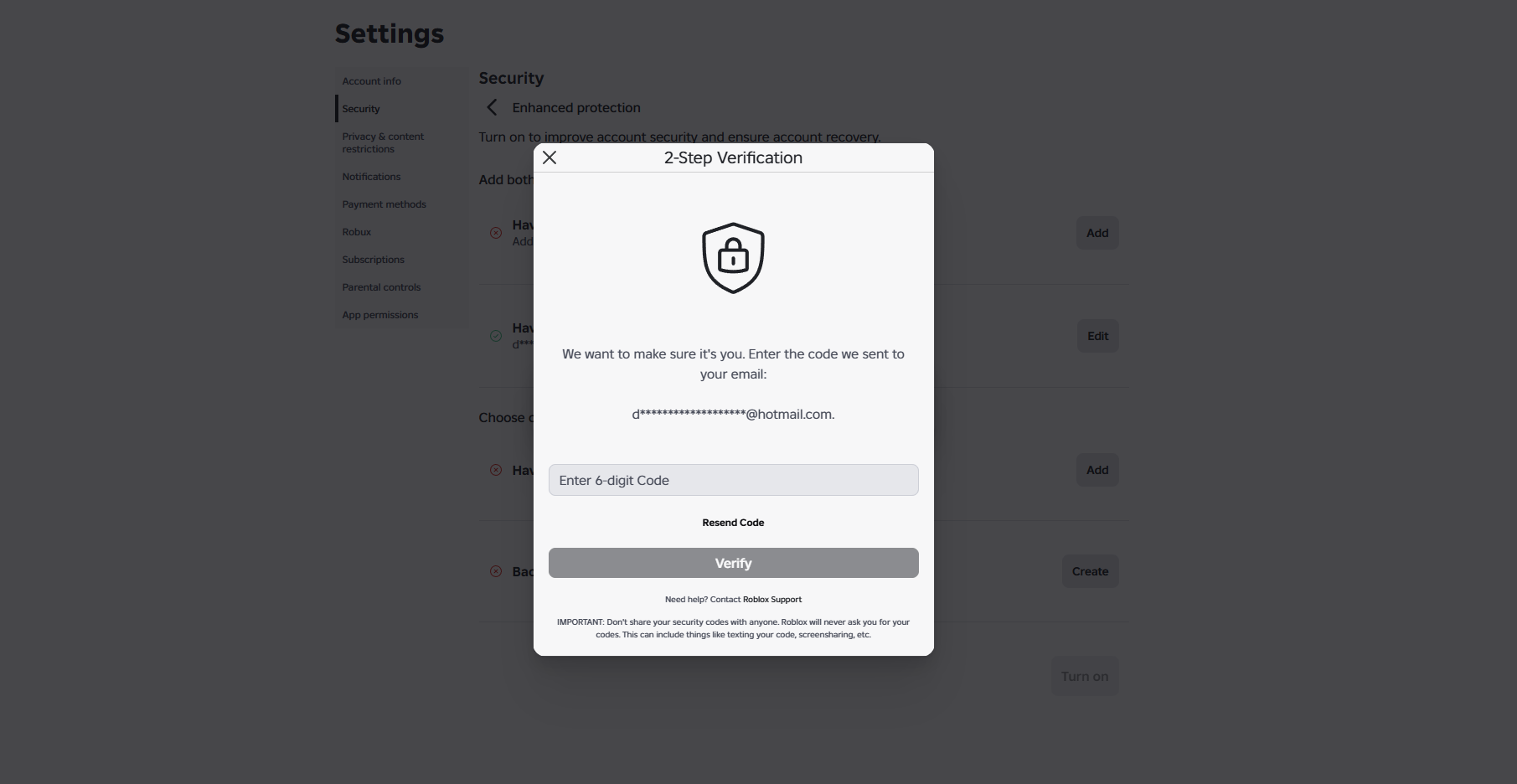
Complete email verification
Roblox may send a verification code to the email address on your account. Check your email and enter the code to continue.
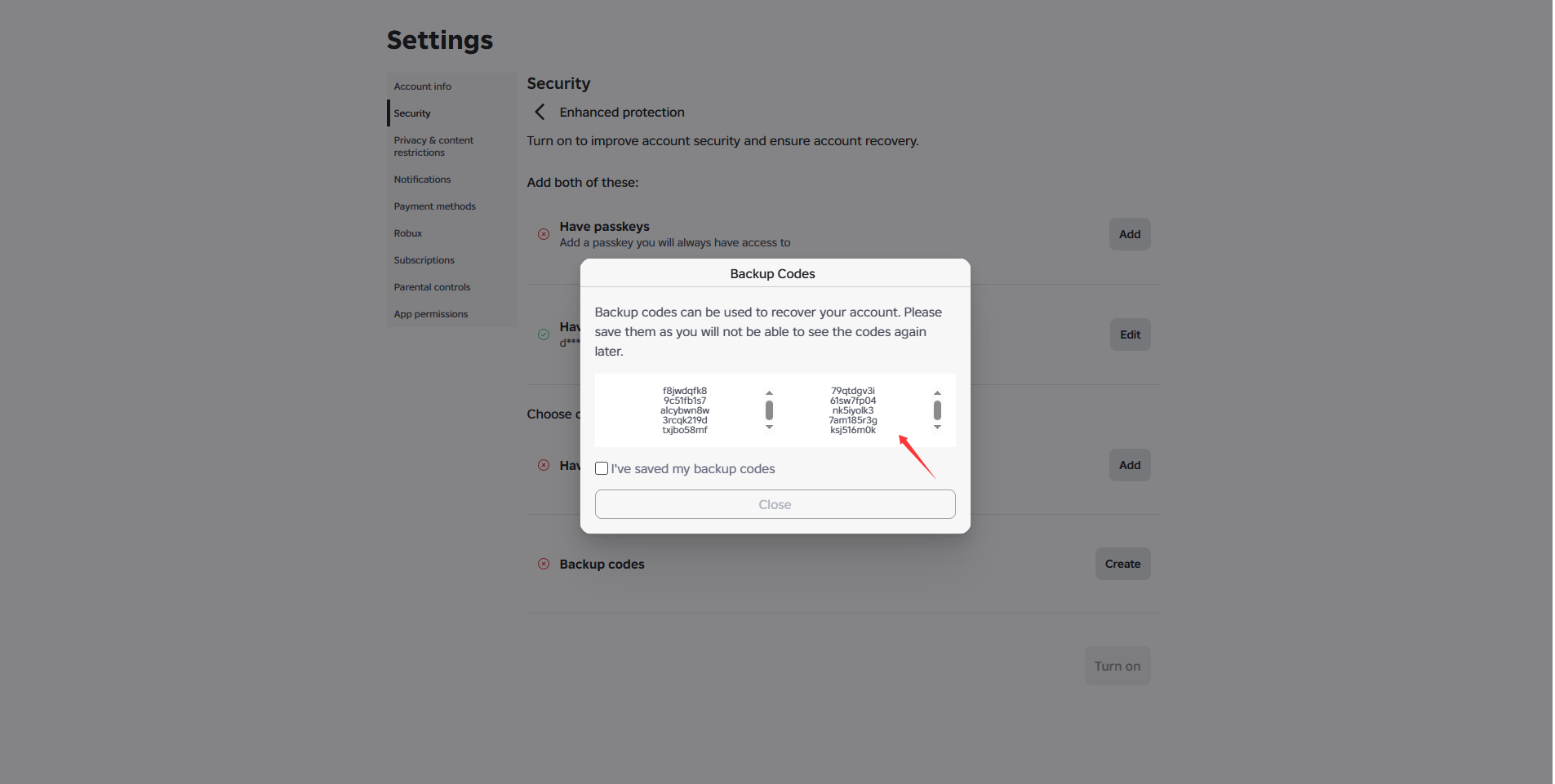
Generate and save your Backup Codes
After verification, Roblox will display your Backup Codes. Save them somewhere secure. Each code can only be used once.
Before submitting your order
- Confirm that you can access your Roblox account email.
- Generate fresh Backup Codes.
- If your order form requires Backup Codes, prepare 2–3 unused codes in case a session disconnects.
- Do not reuse a code that has already been used.
- Do not post Backup Codes in public chat, screenshots, comments, or reviews.
Frequently Asked Questions
Why do I need Backup Codes?
They can help avoid delays when Roblox asks for additional account verification during the service process.
How many Backup Codes should I prepare?
If the order form requires them, prepare 2–3 unused Backup Codes so a disconnected or interrupted session does not delay the order.
Can the same Backup Code be used more than once?
No. Each Backup Code is a one-time code.
What if I lose my Backup Codes?
Return to Settings → Security → Backup Codes and generate a new set. Keep the new codes in a secure place.